

View Models
View models describe a set of properties, but cannot themselves be used to get or set values - that is the role of view model instances. To begin, we need to get a reference to a particular view model. This can be done either by index, by name, or the default for a given artboard, and is done from the Rive file. The default option refers to the view model assigned to an artboard by the dropdown in the editor.These APIs are only needed when the
Data Binding Mode on the RiveWidget is set to Manual.Otherwise, you can configure view model binding directly in the Unity Inspector under the Data section.View Model Instances
Once we have a reference to a view model, it can be used to create an instance. When creating an instance, you have four options:-
Create a blank instance - Fill the properties of the created instance with default values as follows:
- Create the default instance - Use the instance labelled “Default” in the editor. Usually this is the one a designer intends as the primary one to be used at runtime.
- Create by index - Using the order returned when iterating over all available instances. Useful when creating multiple instances by iteration.
- Create by name - Use the editor’s instance name. Useful when creating a specific instance.
In some samples, due to the wordiness of “view model instance”, we use the abbreviation “VMI”, as well as “VM” for “view model”.
These APIs are only needed when the
Data Binding Mode on the RiveWidget is set to Manual.Otherwise, you can configure view model binding directly in the Unity Inspector under the Data section.Binding
The created instance can then be assigned to a state machine or artboard. This establishes the bindings set up at edit time. It is preferred to assign to a state machine, as this will automatically apply the instance to the artboard as well. Only assign to an artboard if you are not using a state machine, i.e. your file is static or uses linear animations.The initial values of the instance are not applied to their bound elements until the state machine or artboard advances.
Auto-Binding
Alternatively, you may prefer to use auto-binding. This will automatically bind the default view model of the artboard using the default instance to both the state machine and the artboard. The default view model is the one selected on the artboard in the editor dropdown. The default instance is the one marked “Default” in the editor.- Component API (Recommended)
- Legacy API
Rive Widget* provides both visual and programmatic ways to configure auto-binding. In the Inspector, you can easily set up binding through the Data Binding Mode dropdown: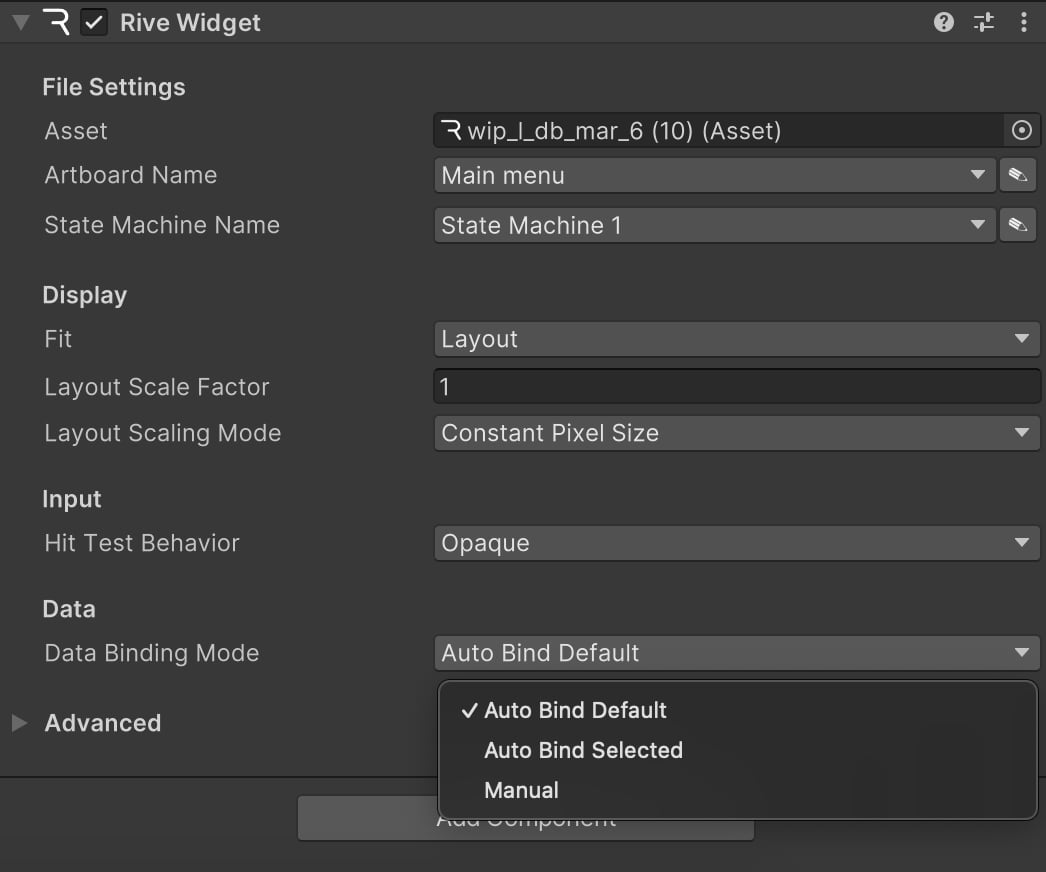
Properties
A property is a value that can be read, set, or observed on a view model instance. Properties can be of the following types:
For more information on version compatibility, see the Feature Support page.
Listing Properties
Property descriptors can be inspected on a view model to discover at runtime which are available. These are not the mutable properties themselves though - once again those are on instances. These descriptors have a type and name.Reading and Writing Properties
References to these properties can be retrieved by name or path. Some properties are mutable and have getters, setters, and observer operations for their values. Getting or observing the value will retrieve the latest value set on that property’s binding, as of the last state machine or artboard advance. Setting the value will update the value and all of its bound elements.After setting a property’s value, the changes will not apply to their bound elements until the state machine or artboard advances.
Nested Property Paths
View models can have properties of type view model, allowing for arbitrary nesting. You can chain property calls on each instance starting from the root until you get to the property of interest. Alternatively, you can do this through a path parameter, which is similar to a URI in that it is a forward slash delimited list of property names ending in the name of the property of interest.Observability
You can observe changes over time to property values, either by using listeners or a platform equivalent method. Once observed, you will be notified when the property changes are applied by a state machine advance, whether that is a new value that has been explicitly set or if the value was updated as a result of a binding.Images
Image properties let you set and replace raster images at runtime, with each instance of the image managed independently. For example, you could build an avatar creator and dynamically update features — like swapping out a hat — by setting a view model’s image property.Render Textures
The examples above useImageOutOfBandAsset to bind static raster images loaded from disk. Use RenderTextureImageSource when the image comes from a live Unity RenderTexture instead, such as VideoPlayer output, a camera render target, or custom GPU content you change each frame.
RenderTextureImageSource wraps the texture as a native Rive image and binds it to a view model image property through SetFromRenderTextureImageSource. Once bound, the runtime keeps the visuals up to date for you.
The example below binds a VideoPlayer render target to a view model image property named "video". Wait until the Rive widget is loaded before binding, then call SetFromRenderTextureImageSource once. The runtime handles per-frame updates after that.
When to use it
Both APIs bind to the same view model image property type. A property can only be driven by one source at a time. Assigning an
ImageOutOfBandAsset through Value automatically unbinds an active render-texture source, and vice versa.
Requirements and limitations
The source must be a stable, user-allocated 2DRenderTexture. Do not use transient RenderGraph resources. Their backing memory can be reused and produce stale samples or crashes.
Supported source formats:
- Single-sample, non-MSAA
- 2D only (not cube, array, or 3D)
- Created and kept alive for as long as the binding is active
On unsupported backends, binding safe-fails: the property stays empty and an error is logged.
Rive composites through an 8-bit internal render target, so HDR source values above 1.0 are clamped at the Rive layer.
Texture processing
Unity backends differ in whether render texture texels are stored top-down or bottom-up. In Linear color space projects, Unity may also hand Rive gamma-encoded values that get decoded twice when the panel composites. To avoid requiring every project to handle these fixes manually, the defaultTextureProcessingMode.Auto blits through an owned intermediate render texture and applies a flip and/or gamma re-encode only when the active backend or project settings actually need it.
Refresh behavior
RenderTextureImageSource controls how often the bound image property is updated from the source texture.
Clearing and switching images
To clear a render-texture-backed image:Value automatically detaches any active RenderTextureImageSource binding on that property.
Lifecycle and teardown
While aRenderTextureImageSource is bound to at least one image property, the runtime keeps it alive and updating.
When you are done with a source, call Dispose() to stop updates and release any intermediate GPU resources owned by Rive.
Recommended teardown order
RenderTextureImageSource does not own your RenderTexture. When shutting down, use this order:
- Stop producers. Stop or disconnect anything still writing into the texture (
VideoPlayer, camera, custom blit loop, etc.). - Unbind and dispose the image source. Call
Dispose()on theRenderTextureImageSource, or callSetFromRenderTextureImageSource(null)and thenDispose(). - Release your render texture (if you created it). If you allocated the
RenderTextureat runtime, callRelease()and thenDestroy()on it.
If your
RenderTexture is a project asset assigned in the Inspector (as in the video example above), you only need steps 1 and 2. Do not call Destroy() on shared or asset-backed render textures.Lists
List properties let you manage a dynamic set of view model instances at runtime. For example, you can build a TODO app where users can add and remove tasks in a scrollable Layout. See the Editor section on creating data bound lists. A single list property can include different view model types, with each view model tied to its own Component, making it easy to populate a list with a variety of Component instances. With list properties, you can:- Add a new view model instance (optionally at an index)
- Remove an existing view model instance (optionally by index)
- Swap two view model instances by index
- Get the size of a list
Artboards
Artboard properties allows you to swap out entire components at runtime. This is useful for creating modular components that can be reused across different designs or applications, for example:- Creating a skinning system that supports a large number of variations, such as a character creator where you can swap out different body parts, clothing, and accessories.
- Creating a complex scene that is a composition of various artboards loaded from various different Rive files (drawn to a single canvas/texture/widget).
- Reducing the size (complexity) of a single Rive file by breaking it up into smaller components that can be loaded on demand and swapped in and out as needed.
BindableArtboard class, which is different from the regular Artboard class in the package.
BindableArtboard is a runtime wrapper for interacting with artboards through data binding. These instances reference existing artboards in your file, so no additional setup is required in the Rive Editor.
Using Custom View Model Instances with Bindable Artboards
You can link a customViewModelInstance to a bindable artboard, giving you control over the data being used by that artboard.
To create a bindable artboard with a custom view model instance, use the overload on the File instance that contains the artboard: