

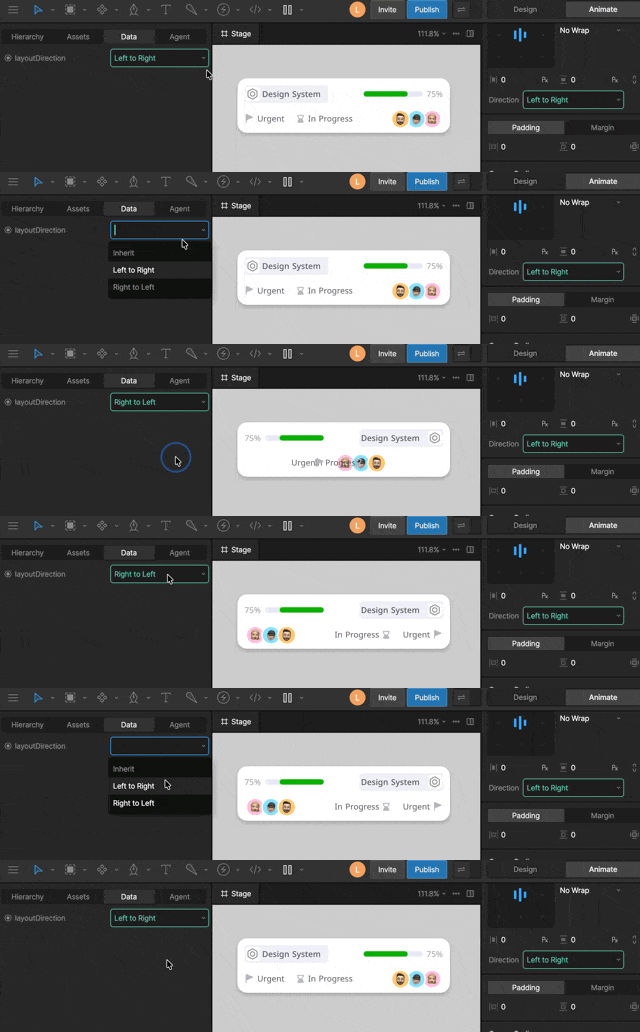
- System enums — built-in sets of options used by the editor (for example, Horizontal Align)
- Custom enums — your own defined sets of options for your specific use case
Why not use strings or numbers?Imagine a calendar app that shows different backgrounds based on the day of the week.You could use a string like “Monday”, but it breaks if someone sets it to “Mon”.You could use a number, but it’s unclear whether the week starts on Sunday or Monday—or whether the index starts at 0 or 1.With an enum, the value must be one of the defined options, so it’s always valid and unambiguous.
Adding an enum property
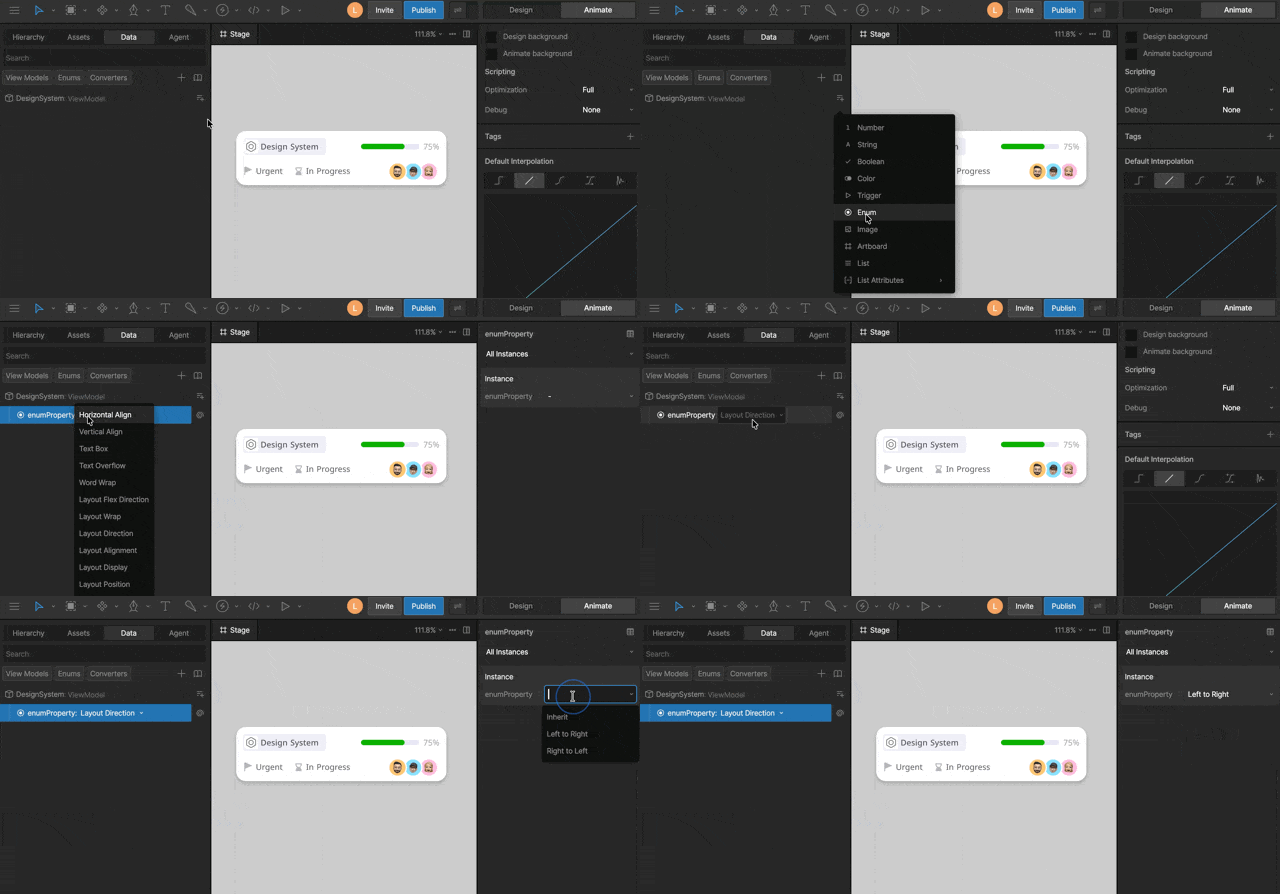
1
Create a new enum property
Create a new enum view model property inside your view model.
2
Set the enum type
Click the dropdown next to the property name and select an enum type.
3
Set the default enum value
Select your enum view model property and in the right sidebar, select the default value.
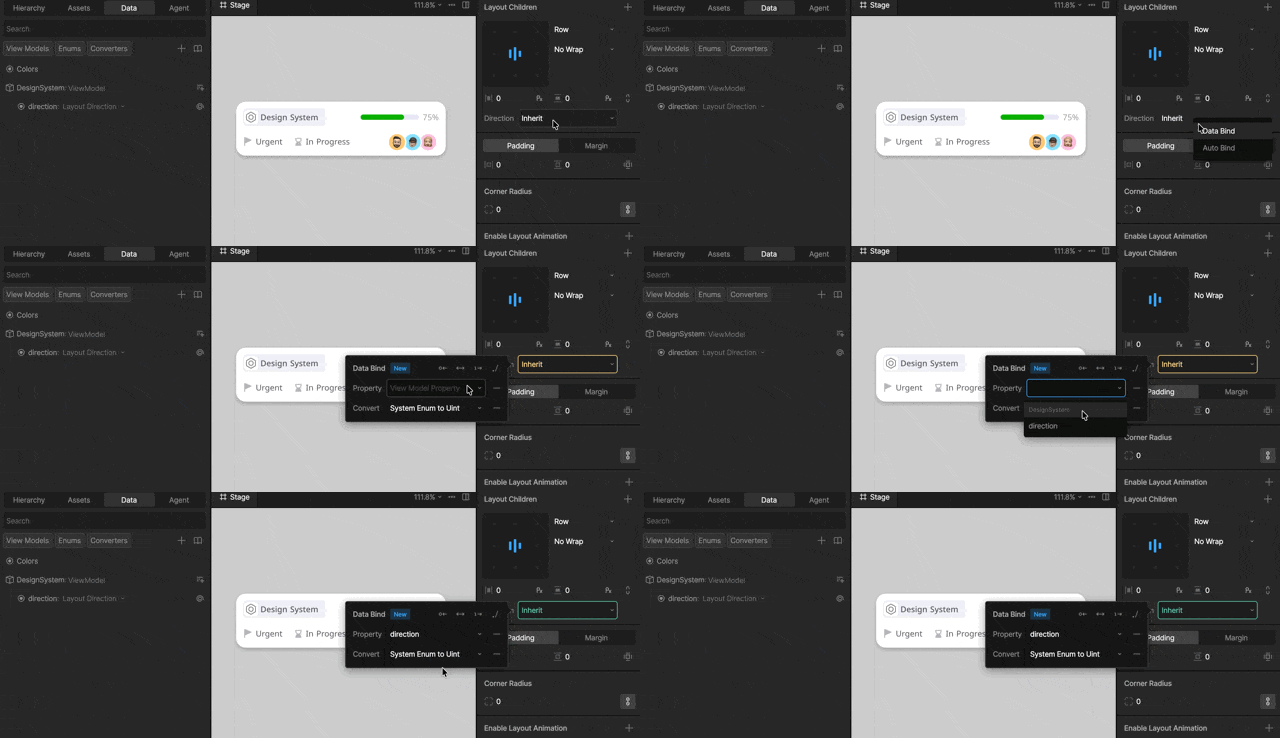
Binding enums
Custom enums
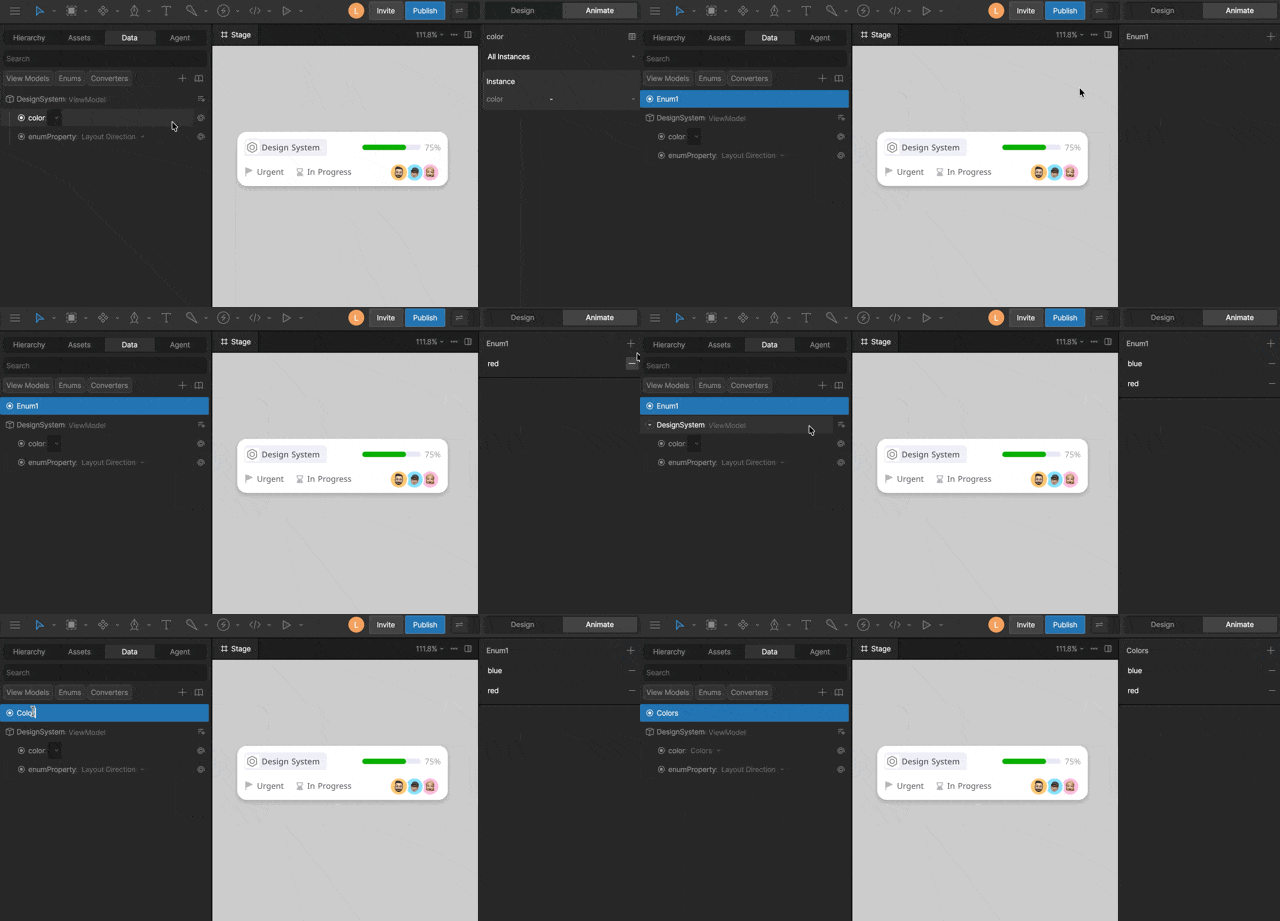
1
Create a new enum
Open the Data panel, click the
+ icon and select enum.2
Add enum options
With your enum selected, click the
+ icon in the right sidebar.3
Assign the enum to a property
Assign your custom enum to your enum view model property.
Controlling Solos with enums
Use an enum to control which Solo is active by mapping each enum value to a Solo.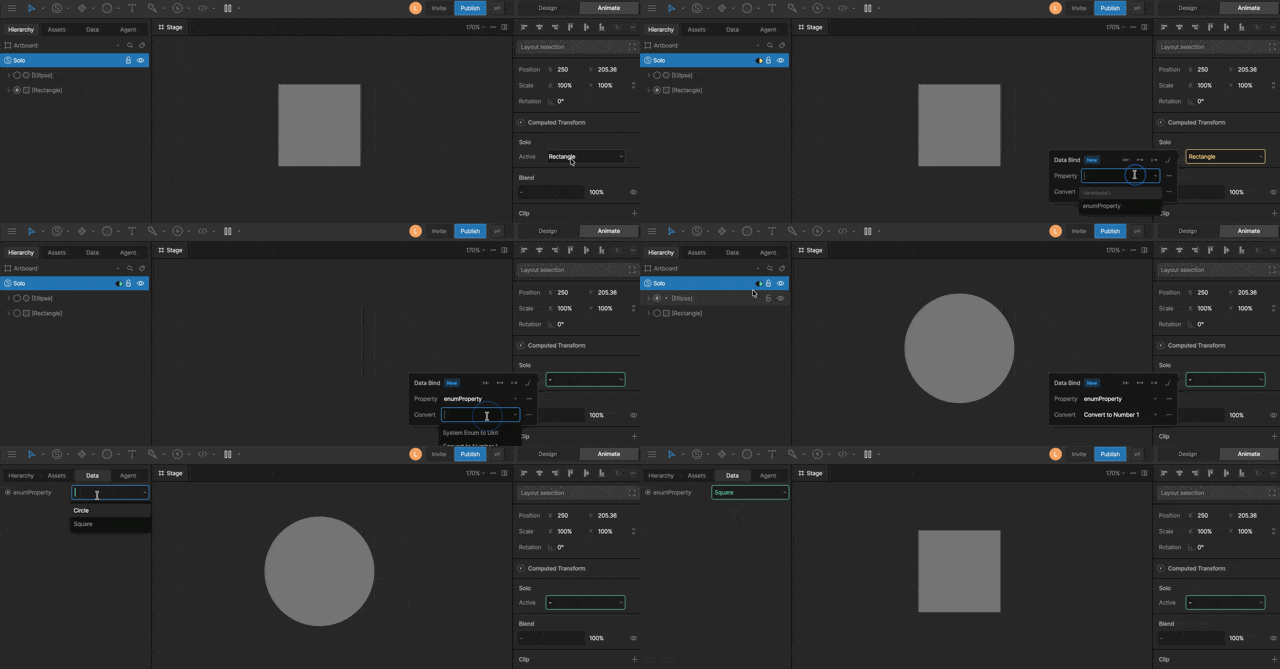
1
Create a matching enum
Create a custom enum with values that match the names and order of your Solos.
2
Export names
Export the names of the objects used by the Solo so they are accessible at runtime.
3
Bind the enum
Bind the enum to the Solo’s Active property and apply a Convert to Number converter.