Importing Audio
See Importing Assets for information about importing files, including MP3, WAV, and FLAC files.Browse Sounds
Browse Sounds gives you direct access to a free library of over 3,000 sounds from Soundly.1
In the Assets panel, click + and select Browse Sounds.
2
In the Sounds panel, search or browse for a sound.
3
Preview the sound, then click + to add it to the Assets panel.
Export Options
Audio assets include a Source option that controls the audio format used for export.- Source: Use the original imported audio format.
- WAV: Export the audio as WAV.
- FLAC: Export the audio as FLAC.
- MP3: Export the audio as MP3.
Creating Clips
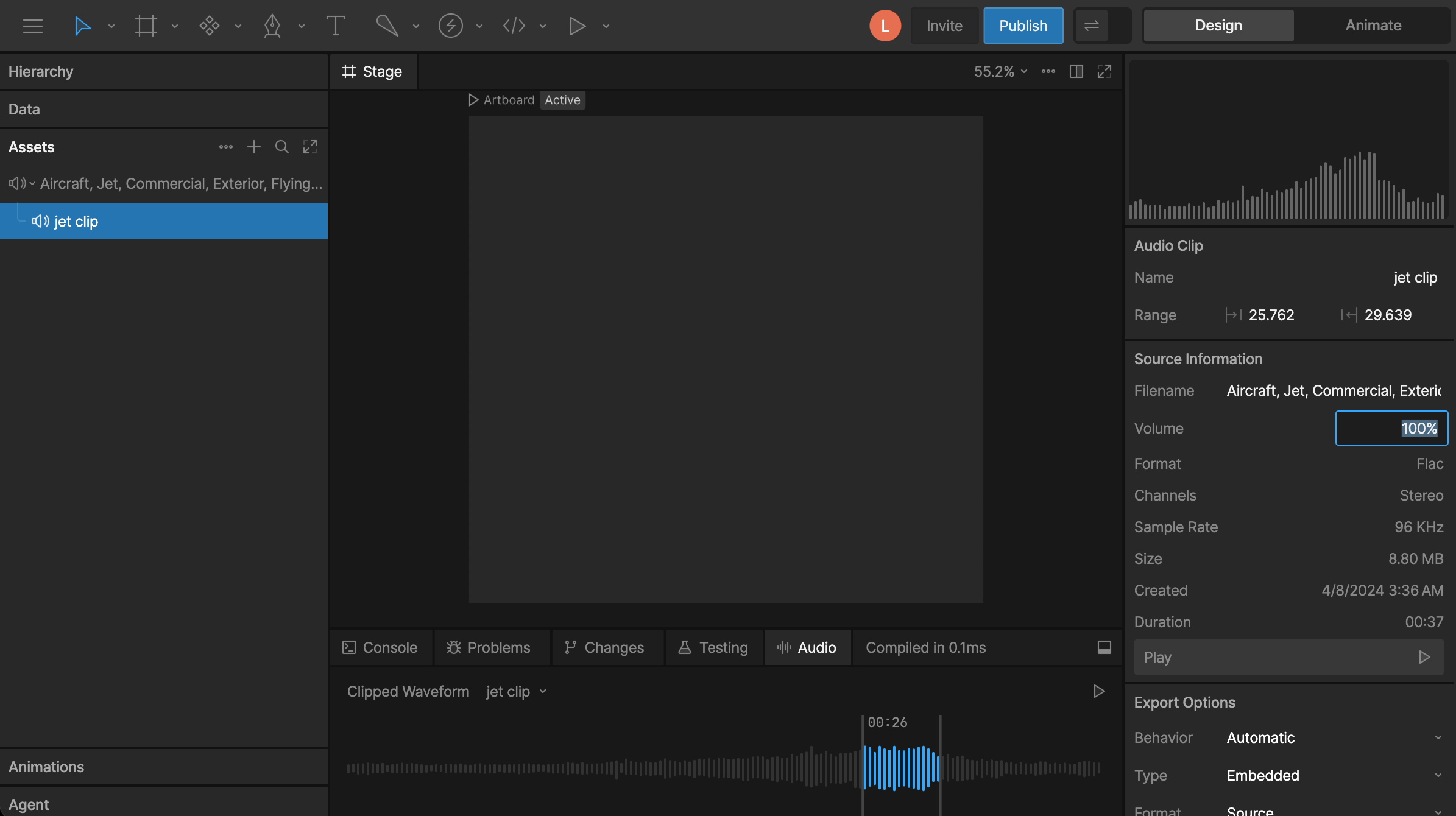
You can create a shorter clip from any audio asset.1
Open the Audio panel in the Debug Panel.
2
Select an audio asset in the Assets panel.
3
Drag along the waveform to select a portion of the audio and click the play button to preview.
4
Click + to create a clip.
Setting Asset Volume
Select an audio asset or clip to set its Volume in the Inspector. Volume is set on the asset, not on each individual use of the asset. If the same audio asset is used in multiple places, changing its volume affects all of them.